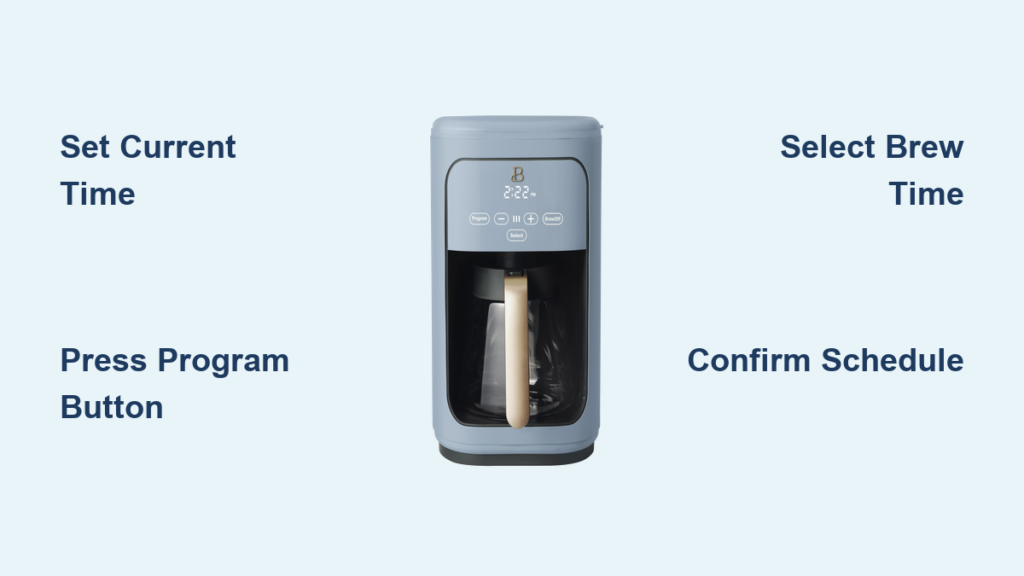
You’ve just unboxed your stylish Drew Barrymore Flower Home coffee maker, excited to enjoy perfectly brewed coffee each morning. But when you try to program the automatic brewing function, you’re met with confusion—where are the settings? How do you schedule your morning brew? Many Flower Home coffee maker owners face this exact frustration when they realize the intuitive design doesn’t come with obvious programming instructions. This guide delivers exactly what you need to know about programming your Drew Barrymore coffee maker, eliminating morning coffee chaos and ensuring your machine is ready when you are. You’ll discover the precise button sequences, timing specifications, and troubleshooting tips that transform your coffee experience from confusing to effortless.
Understanding Your Flower Home Coffee Maker Model
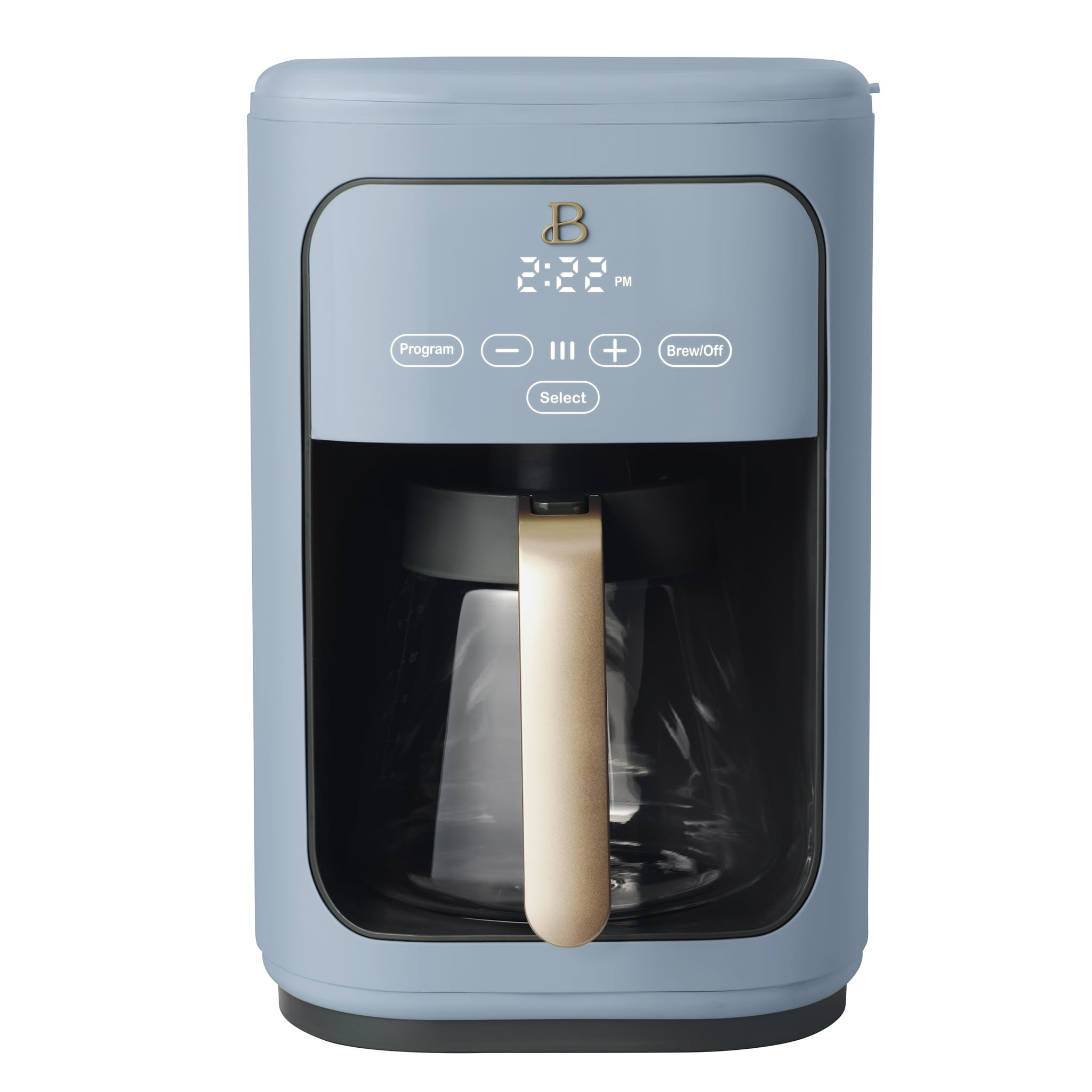
Before diving into programming specifics, you need to identify your exact model. Drew Barrymore’s Flower Home line includes several coffee makers with different programming capabilities. The most common models are the 12-cup programmable thermal carafe version and the 8-cup glass carafe model with digital display. Check the bottom of your unit for the model number—typically beginning with “FHC” followed by digits. This matters because programming sequences differ between models, and using the wrong instructions could reset your settings or trigger error codes. The thermal carafe models generally have more advanced programming features including delayed brew scheduling up to 24 hours in advance, while basic models may only offer simple one-touch programming.
Identifying Programming Features by Model Type
Thermal Carafe Models (FHC-500 Series):
– Digital LCD display showing time and programming status
– Dedicated “Program” button rather than multi-function controls
– Ability to set different brew strengths for scheduled brewing
– Automatic shut-off programming (2-4 hours customizable)
Glass Carafe Models (FHC-300 Series):
– Simpler LED indicators instead of full display
– Programming activated through the “Hour” and “Minute” buttons
– Limited to basic delayed brew scheduling
– No customizable brew strength for programmed cycles
Common Misidentifications That Cause Programming Failures
Many users waste hours trying to program their Flower Home coffee maker because they’re using instructions for the wrong model. The most frequent mix-up occurs between the thermal carafe models with dedicated programming buttons and the glass carafe versions that require button-holding sequences. If your display shows “P” but doesn’t accept time inputs, you’re likely using thermal carafe instructions on a glass carafe model. Another common error is confusing the “Brew Now” function with programming mode—pressing “Start” instead of “Program” creates immediate brewing rather than scheduled operation.
Step-by-Step Programming Instructions for Thermal Carafe Models
Setting the Current Time (Required Before Programming)
Your Drew Barrymore coffee maker won’t allow programming until the current time is correctly set—a frequent oversight causing programming failures. With the unit plugged in but not actively brewing, press and hold the “Clock” button for 3 seconds until the display flashes. Use the “Hour” and “Minute” buttons to set the current time, noting that the display uses 24-hour format (1 PM shows as 13:00). Press “Clock” again to save. If the time resets when unplugged, check that the backup battery compartment (usually under the water reservoir) has a functioning CR2032 battery.
Scheduling Your Automatic Brew Time
Once the current time is set, programming your brew schedule takes just seconds. Press the “Program” button once—the display will show “SET” followed by flashing hours. Use “Hour” and “Minute” to select when you want brewing to begin (for example, 6:30 AM for a 6:30 wake-up). Press “Program” again to confirm. The display will now show “BREW” with your selected time. For delayed brewing up to 24 hours, simply set a time more than 24 hours ahead—the unit automatically calculates the correct day.
Customizing Programmed Brew Settings
The premium thermal carafe models let you customize programmed brews differently from manual brewing. After setting your brew time, press “Strength” while in programming mode to select light, medium, or bold for scheduled brewing independently of your regular settings. If you want the machine to keep coffee warm after brewing, press “Warm” to set auto-shutoff between 2-4 hours. These customizations apply only to programmed cycles, preserving your preferred manual brewing settings.
Programming Glass Carafe Models Without Dedicated Buttons
Activating Programming Mode Through Button Sequences
Glass carafe models require a specific button combination since they lack a dedicated “Program” button. With the current time correctly set, press and hold both “Hour” and “Minute” buttons simultaneously for 5 seconds until “P” appears on the display. If “P” doesn’t appear, unplug the unit for 10 seconds and retry—this often resolves temporary electronic glitches preventing programming mode activation. Once “P” displays, release the buttons and immediately press “Hour” to set your desired brew start time.
Navigating Limited Programming Options
Unlike thermal models, glass carafe versions offer fewer programming customizations. After setting your brew time, you cannot adjust strength settings specifically for programmed cycles—the machine uses whatever strength setting is active when you initiate programming. The auto-shutoff feature also lacks customization, defaulting to 2 hours after brewing completes. If you need different settings, you’ll need to reset the programming each time rather than relying on one permanent schedule.
Troubleshooting Common Programming Failures

Fixing “Err” Messages During Programming
When “Err” appears during programming, it typically indicates timing issues between button presses. Reset the error by unplugging for 30 seconds, then restart the programming sequence. For thermal carafe models, ensure you’re pressing “Program” rather than “Start” between steps. On glass carafe models, the 5-second window between releasing the button-hold sequence and making your first time adjustment is critical—move too slowly and the unit exits programming mode.
Resolving Schedule Resets After Power Outages
The backup battery preserves programming during brief outages but fails during extended power losses. Replace the CR2032 battery in the compartment beneath the water reservoir if your machine consistently loses programming. Clean battery contacts with a cotton swab and rubbing alcohol if corrosion is visible. After battery replacement, reset the current time before attempting to reprogram your schedule.
Maximizing Your Programmed Brewing Experience
Creating Multiple Daily Schedules
While Flower Home coffee makers don’t support multiple schedules natively, you can simulate this by programming your main morning brew and using the “Delay Brew” function for afternoon coffee. Set your morning schedule normally, then each afternoon, press “Delay Brew” and select 1-2 hours ahead for an evening cup. The display will temporarily show the delayed time without affecting your primary programmed schedule.
Integrating with Morning Routines
For seamless mornings, program your coffee maker to finish brewing 5 minutes before you typically wake. If your routine varies, use the “Vacation Mode” feature (hold “Program” for 10 seconds) to temporarily disable scheduled brewing without erasing your settings. Reactivate with another 10-second press when your schedule returns to normal.
Maintenance Requirements for Reliable Programming
Programming failures often stem from mineral buildup affecting electronic components. Run a vinegar solution through the brew cycle monthly, focusing on the water sensor area near the reservoir. For persistent programming glitches, clean the control panel buttons with isopropyl alcohol on a cotton swab—dust accumulation between buttons causes unintended inputs during programming sequences.
When to Seek Professional Support
If programming issues persist after troubleshooting, contact Drew Barrymore Home customer service at 1-800-FLOWER-8 with your model number. They can determine if your unit qualifies for the 2-year limited warranty covering electronic components. Avoid third-party repair services, as unauthorized modifications void the warranty and may create safety hazards with electrical components.
Final Note: Properly programming your Drew Barrymore coffee maker transforms your morning routine from rushed to relaxing. By following these model-specific instructions and maintenance tips, you’ll enjoy perfectly timed coffee without daily reprogramming. Remember to verify your exact model before starting, as confusing the thermal and glass carafe programming sequences causes most user errors. For visual learners, check Drew Barrymore Home’s official YouTube channel for model-specific programming demonstrations that complement these written instructions.